
01
Check the connection
Check Timeline X connection readiness and identify the current project before taking any action.
Connect OpenCode, Claude Code, Codex, Cursor, Claude or ChatGPT to your Timeline X project over HTTPS. Copy the format for your client and sign in with OAuth.
Streamable HTTP · HTTPS · OAuth PKCE
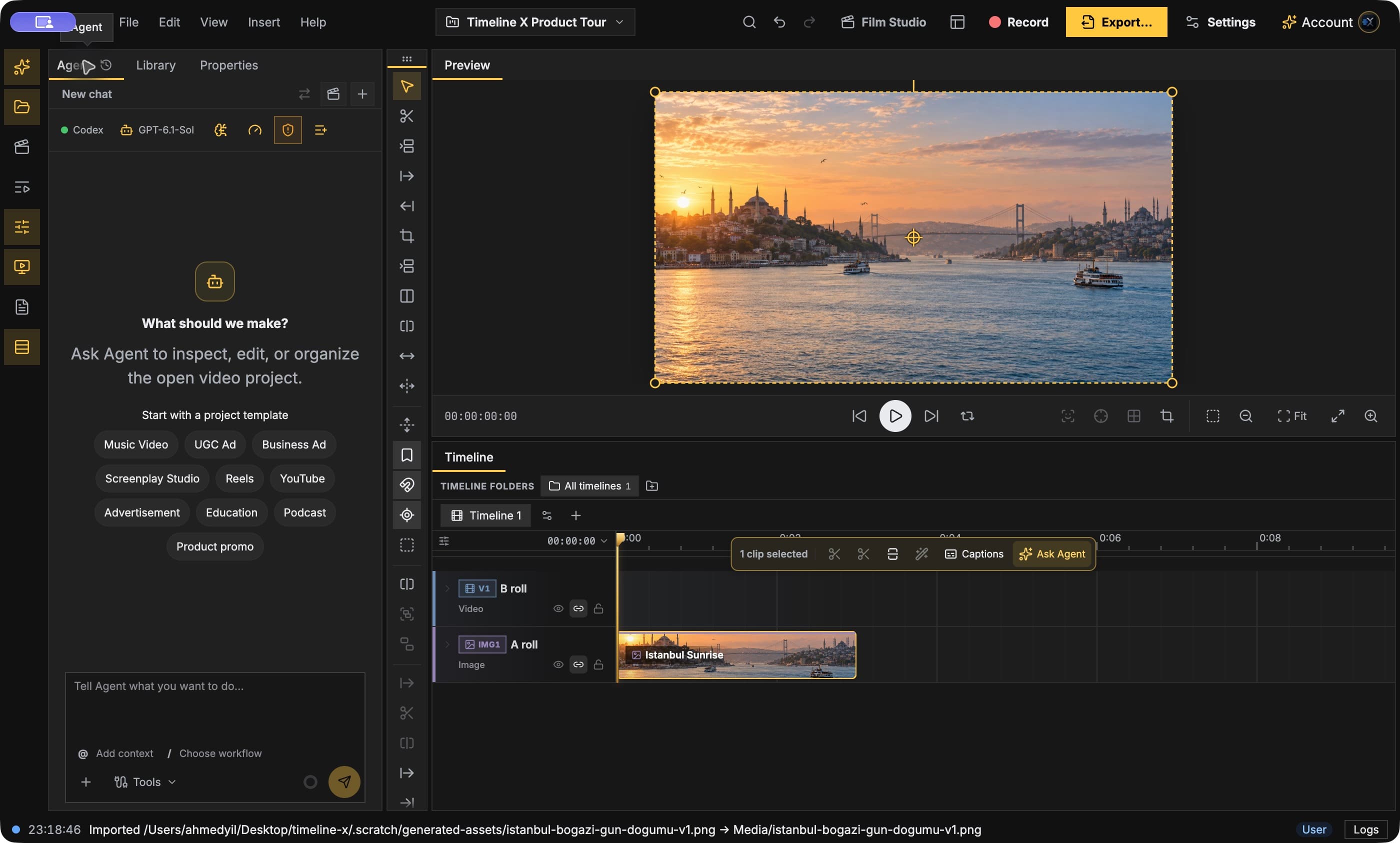
Connect your assistant to your running Timeline X desktop.
Open Timeline X, sign in and open the project you want to work on. After OAuth approval, your online desktop and open project connect automatically.
Select your client below and copy its configuration or connection fields. Registered public client IDs are included where required. Sign in with the same Timeline X account and review the requested permissions.
Ask the assistant to call timeline_x_connection_status, then timeline_x_read_project with view=composition. A saved configuration alone does not confirm a connected desktop. Begin editing after a successful project read.
Streamable HTTP over HTTPS · OAuth with PKCE
Configuration file: opencode.json. Merge this entry with your existing servers.
{
  "mcp": {
    "timeline-x": {
      "type": "remote",
      "url": "https://mcp.timelinex.studio/mcp",
      "enabled": true,
      "oauth": {
        "clientId": "1e6eb44f-a458-4d57-a11d-06d3547af9bd"
      }
    }
  }
}
For an Add MCP server dialog that accepts one server object, enter the name timeline-x and paste only the object below.
{
  "type": "remote",
  "url": "https://mcp.timelinex.studio/mcp",
  "enabled": true,
  "oauth": {
    "clientId": "1e6eb44f-a458-4d57-a11d-06d3547af9bd"
  }
}opencode mcp auth timeline-xThe public client ID in this configuration is already registered for this application. Use it as supplied; you do not create a new ID for each user. Each user signs in and approves their own access.
Call timeline_x_connection_status, then timeline_x_read_project with view="composition", include_catalog=false and include_execution_guide=false. Report the actual results without changing the project.The connection uses Streamable HTTP over HTTPS and OAuth with PKCE. Timeline X registers supported applications once; each user signs in and approves their own access. Your desktop must stay online for editing, previews and exports.
Check Timeline X connection readiness and identify the current project before taking any action.
List the media in the current project Library and identify the clips available for a new edit.
Read the current sequence and show a preview at the playhead. Wait for my next editing request.